

Get Quotes

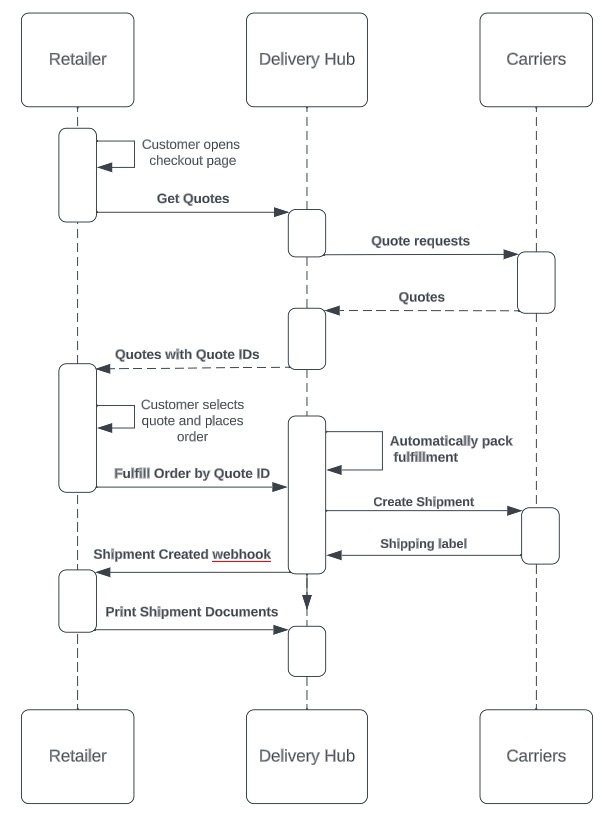
Send order details to your connected carriers and receive quotes including carrier availability, timing, and cost for each delivery.

When you send the Get Quotes API request to display shipping rates on your e-commerce checkout page, Delivery Hub receives all of the information necessary to create an order, holding on to the data for when the order is actually created. Delivery Hub then sends individual rate requests to each carrier, translates all responses, and returns a single payload to your system. This payload includes an array (list) of quotes, each with a Quote ID, for you to display at checkout. Once your customer chooses a delivery option, your system should confirm the order and the selected quote by sending the Fulfill Order by Quote IDrequest. Delivery Hub then confirms the shipment with the carrier.
Body Params
string
enum
required

The currency used for transactions in this order.

billing_address
object
required
int32
required

The total price of this order, used for shipping rules and display in customer-facing documentation. Formatted to include cents. For example, a value of 25000 using USD as currency would appear as $250.00 in the Delivery Hub UI.

customer
object
required
fulfillments
array of objects

The fulfillments that belong to this order,
listed as an array. Delivery Hub displays
each fulfillment only in the shipping location
where a packer will fulfill that part of the order.

fulfillments
integration
object
string

The order name, often formatted as a combination of OMS name, ID number, timestamp, or carrier.

string

Your source system's ID for this order.

notes
array of strings

Additional order details, such as contact or address instructions.

notes
int32

The tip (gratuity) paid to the driver by the customer.

string

Custom tags that inform Bringg which customer-facing branding to use (Own Fleet only).

products
array of objects

The products included in this order.

products
custom
object

Custom data to save within an order.

Responses

Language
LoadingLoading…
Response
Click Try It! to start a request and see the response here! Or choose an example:
application/json